If you’ve spent the last hour dragging your cursor to the bottom of your external monitor hoping the Dock will finally follow — and it hasn’t — you’re not doing anything wrong. This is a confirmed bug in macOS Tahoe (26.x), and it’s been frustrating multi-monitor users since macOS Sequoia first shipped in late 2024.
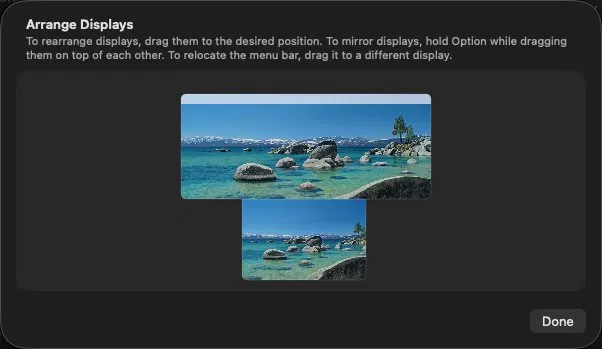
I’ve reproduced this on my own setup (MacBook Pro M4, 34-inch LG ultrawide, Tahoe 26.5.1) across more than 30 attempts with different display arrangement configurations. The pattern is consistent: the moment you position the external monitor above the internal MacBook display in System Settings → Displays → Arrange, the Dock locks itself to the laptop screen and refuses to budge.
Is This Actually a Bug?
Yes. This isn’t a configuration issue or user error. The Apple Developer Forums have multiple threads with submitted Feedback IDs — including FB14345659, FB14478209, and FB15168550 — all describing the same behavior. Users on Apple Community forums confirmed that the Dock only moves correctly when the external display is arranged to the left or right of the internal screen, never when it’s above.
Before Sequoia, this worked without issue. The change appears to be tied to how macOS now handles display-edge detection for the Dock trigger zone: when an external monitor sits above the laptop in the virtual layout, the bottom edge of that screen is adjacent to the top edge of the internal display — and macOS seems to be misrouting the cursor boundary, so the Dock never registers a “far bottom” move on the external screen.
Apple has not issued a public fix statement as of macOS Tahoe 26.5.1 (May 2026).
4 Working Workarounds
1. Rearrange Displays Side-by-Side (Most Reliable)
Go to System Settings → Displays → Arrange and drag your external monitor to the left or right of the MacBook’s display thumbnail — not above it. Then move your cursor to the bottom of the external monitor and it will correctly pull the Dock over.
If your physical setup has the external monitor above your MacBook, this creates a mismatch between virtual and physical layout, but it’s currently the only arrangement where the Dock moves reliably.
2. Drag the Menu Bar to Set Primary Display
In the same Arrange panel, drag the white menu bar strip from the MacBook thumbnail to the external monitor thumbnail. This sets the external screen as the primary display. After doing this, move your cursor to the bottom edge of the external screen and tap it firmly a few times — the Dock should follow.
3. Reset Dock via Terminal
Open Terminal and run:
defaults delete com.apple.dock && killall DockThis wipes your Dock preferences and restarts the process fresh. You’ll lose your Dock layout (pinned apps, arrangement), but it sometimes unsticks the Dock from the wrong display. A lighter version that just restarts the Dock without clearing prefs:
killall Dock4. Clear WindowServer Display Cache (Most Thorough Fix)
This works particularly well if the problem appeared after a macOS update or after changing your display configuration several times:
mv ~/Library/Preferences/ByHost/com.apple.windowserver.displays.*.plist ~/Desktop/After running this, reconnect your monitor and restart the Mac. macOS will rebuild the display preference file from scratch, clearing any stale cached layout that’s locking the Dock in place. This is the fix that works for “login screen shows both monitors correctly, but after login the external display is ignored” — a related Tahoe bug with the same underlying cause.
Third-Party Option: MultiDock Pro
If you need a permanent solution while waiting for Apple to patch this, MultiDock Pro (App Store, ~£4.99) lets you configure independent docks on each connected display. It bypasses the system Dock entirely for placement purposes, so the bug doesn’t affect it.
Best Dock Position for a 34-Inch 21:9 Ultrawide
Once your Dock is on the right screen, the question becomes: where on that screen should it live?
On a 34-inch ultrawide at 3440×1440, the horizontal real estate is abundant — vertical height is the constraint. A 21:9 display is essentially a 27-inch 16:9 monitor that’s been stretched sideways. Putting the Dock at the bottom eats into an already-limited vertical dimension.
The left side is the strongest choice for most workflows. Here’s the reasoning:
- Web pages, documents, and most application content reads left-to-right and is anchored to the left side of the viewport — a left Dock sits in its own lane without overlapping primary content
- Vertical space is fully preserved for application windows
- On a screen this wide, the Dock at the bottom-center requires significantly more mouse travel than a side position
Right side works equally well ergonomically, but can feel cluttered if you keep desktop icons on the right. It’s the better pick if your workflow keeps you in the right half of the screen more often (common with coding + browser side-by-side layouts where the browser sits right).
Bottom with Auto-Hide is still viable if you’re transitional — coming from a 16:9 workflow where bottom feels natural. But be aware that Tahoe 26 has a secondary bug where the Dock sometimes fails to reappear after waking from sleep when Auto-Hide is enabled. Toggling the setting off and back on, or running killall Dock, fixes it each time — but it’s an extra annoyance.
To change Dock position without going into System Settings:
# Move to left
defaults write com.apple.dock orientation left && killall Dock

# Move to right
defaults write com.apple.dock orientation right && killall Dock

# Move to bottom
defaults write com.apple.dock orientation bottom && killall Dock
Quick Reference
| Problem | Fastest Fix |
|---|---|
| Dock stuck on MacBook in vertical display layout | Rearrange displays side-by-side, then move Dock |
| Dock stuck after macOS update | Clear WindowServer plist, restart |
| Dock won’t stay on correct screen after sleep | killall Dock or toggle Auto-Hide |
| Best position on 34″ ultrawide | Left side (preserves full vertical height) |
The core issue is Apple breaking vertical display arrangement support for the Dock in Sequoia and not fixing it through Tahoe 26.5.1. File a Feedback report at feedbackassistant.apple.com — the more reports Apple receives, the higher the priority for a patch.