The everyday git command line is the same on every platform. What a Mac adds is a small layer of setup around it. That layer is short: storing your GitHub token in the Keychain, copying an SSH key with pbcopy, keeping .DS_Store out of your repositories, and knowing which of the two git binaries on your Mac is running. This is a working git command line reference for the commands you type daily. It also covers the macOS-specific parts a generic cheat sheet leaves out. Everything here was run on macOS with Apple Git 2.50.1 and Homebrew git 2.55.0.
The cheat sheet
Here is the whole git command line reference as one image, ordered by how often you reach for each command. The daily loop is at the top and the rescue commands are at the bottom. Save it or open it full size; the sections below explain the parts that need it.
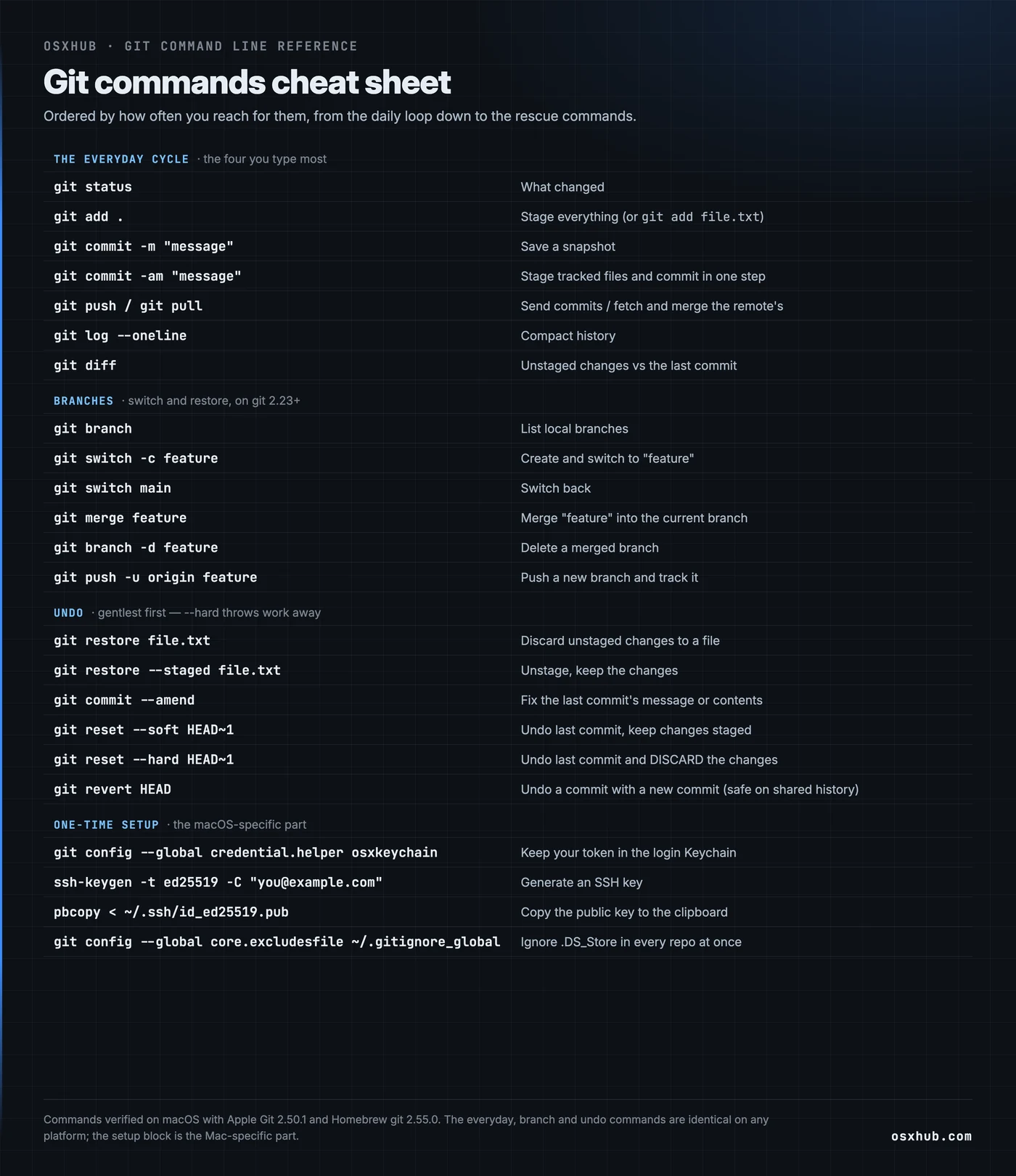
The everyday git command line cycle
Start a repository, or clone one, then the same four-step loop carries most days. See what changed, stage it, commit it, push it:
git init                       # start a repo here
git clone [email protected]:user/repo.git

git status                     # what changed
git add .                      # stage everything (or: git add file.txt)
git commit -m "message"        # save a snapshot
git commit -am "message"       # stage tracked files and commit in one step

git push                       # send commits to the remote
git pull                       # fetch and merge the remote's commits
git log --oneline              # compact history
git diff                       # unstaged changes vs the last commit
That handful is most of git for most people. One habit is worth building: run git status before every commit. It costs a second, and it tells you exactly what you are about to stage.
Branches
Git 2.23 introduced switch and restore to replace the overloaded checkout. The old checkout did both branch changes and file restores, which made it easy to misuse. Both the Apple and Homebrew builds are well past 2.23. So the newer commands are available on any current Mac:
git branch                     # list local branches
git switch -c feature          # create and switch to "feature"
git switch main                # switch back
git merge feature              # merge "feature" into the current branch
git branch -d feature          # delete a merged branch
git push -u origin feature     # push a new branch and track it
If you learned git with checkout, it still works. But switch makes the intent clear, and it is harder to reach for the wrong one by accident.
Undo the last thing
These are the git command line commands people look up most, arranged from gentlest to most destructive. The --hard one throws work away permanently. Run git status first so you know exactly what you are discarding:
git restore file.txt           # discard unstaged changes to a file
git restore --staged file.txt  # unstage, keep the changes
git commit --amend             # fix the last commit's message or contents
git reset --soft HEAD~1        # undo last commit, keep changes staged
git reset --hard HEAD~1        # undo last commit and DISCARD the changes
git revert HEAD                # undo a commit with a new commit (safe on shared history)
One distinction matters more than the rest. reset rewrites history, so it is for commits you have not shared. revert instead adds a new commit that undoes an old one. That is the safe choice once a commit is pushed and other people may have it.
Set up git on a Mac
This is the part a generic git command line guide skips, and it is where the Mac differs. Set your identity once, and tell git to keep your GitHub token in the macOS Keychain so it stops asking on every push. The osxkeychain helper already ships with git on the Mac:
git config --global user.name "Your Name"
git config --global user.email "[email protected]"
git config --global init.defaultBranch main

# store HTTPS credentials in the login Keychain (macOS-specific)
git config --global credential.helper osxkeychain
For SSH instead of a token, generate a key and copy it with pbcopy, the Mac clipboard command. There is no need to open the file in an editor:
ssh-keygen -t ed25519 -C "[email protected]"
pbcopy < ~/.ssh/id_ed25519.pub
Paste that into GitHub, then let the Keychain hold the passphrase so ssh-agent reloads it after a reboot. Add the matching block to ~/.ssh/config and the key loads automatically:
Host github.com
  UseKeychain yes
  AddKeysToAgent yes
  IdentityFile ~/.ssh/id_ed25519
One caution on that config. UseKeychain and its newer spelling --apple-use-keychain exist only in Apple’s build of OpenSSH. Copy this file to a Linux box and ssh rejects the line as unknown. So keep Mac-only options out of a config you share across machines.
Last, stop Finder’s .DS_Store files from landing in every repository. macOS writes one into any folder you open in Finder, and git will happily track it. One global ignore file covers every project at once:
echo .DS_Store >> ~/.gitignore_global
git config --global core.excludesfile ~/.gitignore_global
Global vs per-repo identity
--global writes to ~/.gitconfig and becomes your default in every repository. But run git config user.name "..." without a scope flag from inside a repo, and git writes it to that repo’s .git/config instead. Local scope is the default there, and it overrides the global for that one project:
$ cd work-project
$ git config user.email "[email protected]"   # this repo only (.git/config)
$ git config --show-origin user.email
file:.git/config	[email protected]
That is the safeguard against committing under the wrong identity. Set the global to your usual name and email, then override per-repo where it matters. A client or work project never gets stamped with your personal address that way, and vice versa. Run the same command outside any repository, though, and there is no local config to write to. So git stops with fatal: not in a git directory.
When you are not sure which value is winning, --show-origin names the exact file it comes from. That is faster than opening three config files by hand. And it settles the “why is this commit under the wrong email” question in one line.
The case-insensitive gotcha
The Mac’s default APFS volume is case-insensitive, so File.txt and file.txt are the same file. Git notices, and sets core.ignorecase to match. You can see it do this on any fresh repo — git init writes the flag into .git/config itself:
$ git init
$ git config --show-origin core.ignorecase
file:.git/config	true
Day to day this is invisible and helpful. It causes trouble in exactly one situation. Say you clone a repo built on a case-sensitive filesystem, and it contains two files whose names differ only in case. Only one of them can land on disk. The other shows as permanently modified in git status, with nothing you can do locally to clear it. The only real fix is to check the repo out on a case-sensitive volume. It is rare, but genuinely baffling the first time it happens, and now you know the cause.
Which git is your Mac running?
macOS does not ship git on its own. /usr/bin/git comes with the Command Line Tools. Running any git command on a Mac without them triggers the “Install Command Line Tools” dialog. Once the tools are installed, or you have run brew install git, most Macs have two copies. Whichever is first on your PATH wins:
$ which -a git
/opt/homebrew/bin/git        # Homebrew
/usr/bin/git                 # Apple's build
$ /usr/bin/git --version
git version 2.50.1 (Apple Git-155)
$ /opt/homebrew/bin/git --version
git version 2.55.0
Apple’s build lags behind — 2.50.1 here against Homebrew’s 2.55.0. So if git --version ever surprises you, it is a PATH question. which -a git settles which one you are actually typing to. The everyday, branch and undo commands behave the same on either build. And git help <command> has the full detail for any of them.
So the git command line itself is standard, and the cheat sheet at the top works anywhere. The Mac-specific part is the setup around it. That means the Keychain holding your credentials, pbcopy for the SSH key, global-versus-local identity, and .DS_Store ignored once. Get those four right, and the rest is the same git command line you would use anywhere else.